엑셀에서 사진을 선택하면 시트 안에 '픽셀 아트'로 직접 그리는 방법을 소개합니다.
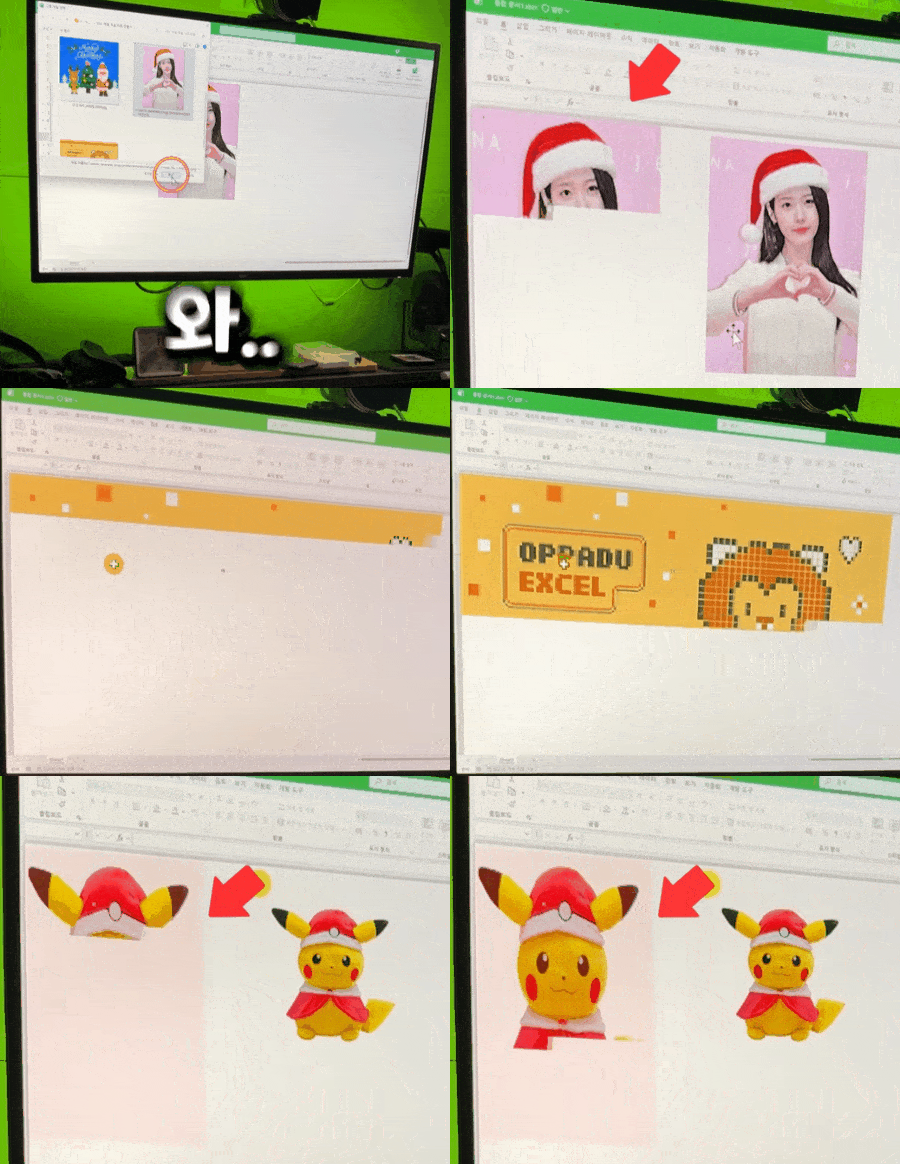 이제 사진을 엑셀 시트 픽셀아트로 직접 옮길 수 있습니다!🎨
👇엑셀 사진 → 픽셀아트 전체 매크로 코드 (윈도우에서만 사용 가능합니다!)
Option Explicit

'========================
' 설정값
'========================
Private Const OUTPUT_COLS As Long = 200 '<- 가로 사이즈를 수정하세요 (200개)
Private Const OUTPUT_ROWS As Long = 200 '<- 세로 사이즈를 수정하세요 (200개)
Private Const PREVIEW_PAINT As Boolean = True   'False면 한줄 씩 그리지 않고 한 번에 생성합니다. (매우 빨라짐)
Private Const RESIZE_PX As Long = 400
Private Const PREVIEW_DELAY_MS As Long = 1

'========================
' GDI+ 선언부 (64-bit/32-bit 겸용)
'========================
#If VBA7 Then
    Private Declare PtrSafe Function GdiplusStartup Lib "gdiplus" (ByRef token As LongPtr, ByRef inputbuf As GdiplusStartupInput, ByVal outputbuf As LongPtr) As Long
    Private Declare PtrSafe Sub GdiplusShutdown Lib "gdiplus" (ByVal token As LongPtr)

    Private Declare PtrSafe Function GdipCreateBitmapFromFile Lib "gdiplus" (ByVal filename As LongPtr, ByRef bitmap As LongPtr) As Long
    Private Declare PtrSafe Function GdipDisposeImage Lib "gdiplus" (ByVal image As LongPtr) As Long
    Private Declare PtrSafe Function GdipGetImageWidth Lib "gdiplus" (ByVal image As LongPtr, ByRef width As Long) As Long
    Private Declare PtrSafe Function GdipGetImageHeight Lib "gdiplus" (ByVal image As LongPtr, ByRef height As Long) As Long

    Private Declare PtrSafe Function GdipCreateBitmapFromScan0 Lib "gdiplus" (ByVal width As Long, ByVal height As Long, ByVal stride As Long, ByVal PixelFormat As Long, ByVal scan0 As LongPtr, ByRef bitmap As LongPtr) As Long
    Private Declare PtrSafe Function GdipGetImageGraphicsContext Lib "gdiplus" (ByVal image As LongPtr, ByRef graphics As LongPtr) As Long
    Private Declare PtrSafe Function GdipDeleteGraphics Lib "gdiplus" (ByVal graphics As LongPtr) As Long
    Private Declare PtrSafe Function GdipDrawImageRectI Lib "gdiplus" (ByVal graphics As LongPtr, ByVal image As LongPtr, ByVal x As Long, ByVal y As Long, ByVal width As Long, ByVal height As Long) As Long
    Private Declare PtrSafe Function GdipSetInterpolationMode Lib "gdiplus" (ByVal graphics As LongPtr, ByVal interpolationMode As Long) As Long
    Private Declare PtrSafe Function GdipBitmapGetPixel Lib "gdiplus" (ByVal bitmap As LongPtr, ByVal x As Long, ByVal y As Long, ByRef argb As Long) As Long
    Private Declare PtrSafe Sub Sleep Lib "kernel32" (ByVal dwMilliseconds As LongPtr)
#Else
    Private Declare Function GdiplusStartup Lib "gdiplus" (ByRef token As Long, ByRef inputbuf As GdiplusStartupInput, ByVal outputbuf As Long) As Long
    Private Declare Sub GdiplusShutdown Lib "gdiplus" (ByVal token As Long)

    Private Declare Function GdipCreateBitmapFromFile Lib "gdiplus" (ByVal filename As Long, ByRef bitmap As Long) As Long
    Private Declare Function GdipDisposeImage Lib "gdiplus" (ByVal image As Long) As Long
    Private Declare Function GdipGetImageWidth Lib "gdiplus" (ByVal image As Long, ByRef width As Long) As Long
    Private Declare Function GdipGetImageHeight Lib "gdiplus" (ByVal image As Long, ByRef height As Long) As Long

    Private Declare Function GdipCreateBitmapFromScan0 Lib "gdiplus" (ByVal width As Long, ByVal height As Long, ByVal stride As Long, ByVal PixelFormat As Long, ByVal scan0 As Long, ByRef bitmap As Long) As Long
    Private Declare Function GdipGetImageGraphicsContext Lib "gdiplus" (ByVal image As Long, ByRef graphics As Long) As Long
    Private Declare Function GdipDeleteGraphics Lib "gdiplus" (ByVal graphics As Long) As Long
    Private Declare Function GdipDrawImageRectI Lib "gdiplus" (ByVal graphics As Long, ByVal image As Long, ByVal x As Long, ByVal y As Long, ByVal width As Long, ByVal height As Long) As Long
    Private Declare Function GdipSetInterpolationMode Lib "gdiplus" (ByVal graphics As Long, ByVal interpolationMode As Long) As Long
    Private Declare Function GdipBitmapGetPixel Lib "gdiplus" (ByVal bitmap As Long, ByVal x As Long, ByVal y As Long, ByRef argb As Long) As Long
    Private Declare Sub Sleep Lib "kernel32" (ByVal dwMilliseconds As Long)
#End If

Private Type GdiplusStartupInput
    GdiplusVersion As Long
#If VBA7 Then
    DebugEventCallback As LongPtr
#Else
    DebugEventCallback As Long
#End If
    SuppressBackgroundThread As Long
    SuppressExternalCodecs As Long
End Type

Private Const PixelFormat32bppARGB As Long = &H26200A
Private Const InterpolationModeHighQualityBicubic As Long = 7

Public Sub 그림을시트에넣기()
    Dim path As String
    path = PickImageFile()
    If Len(path) = 0 Then Exit Sub

    ImageToCells_ByPath path
End Sub

Private Sub ImageToCells_ByPath(ByVal path As String)
    '==== 여기부터는 기존 ImageToCells 내용에서
    'path = PickImageFile() ~ Exit Sub 이후 부분을 그대로 옮기면 됩니다.
    '즉, GDI+ 초기화

    #If VBA7 Then
        Dim gdipToken As LongPtr
    #Else
        Dim gdipToken As Long
    #End If


    Dim si As GdiplusStartupInput
    si.GdiplusVersion = 1

    If GdiplusStartup(gdipToken, si, 0) <> 0 Then
        MsgBox "GDI+ 초기화 실패", vbCritical
        Exit Sub
    End If

    On Error GoTo CleanFail

        '원본 로드
    #If VBA7 Then
        Dim srcBmp As LongPtr
    #Else
        Dim srcBmp As Long
    #End If
        If GdipCreateBitmapFromFile(StrPtr(path), srcBmp) <> 0 Or srcBmp = 0 Then
            MsgBox "이미지 로드 실패", vbCritical
            GoTo CleanFail
        End If

    #If VBA7 Then
        Dim rsBmp As LongPtr
    #Else
        Dim rsBmp As Long
    #End If
        rsBmp = ResizeBitmapHandle(srcBmp, RESIZE_PX, RESIZE_PX)
        If rsBmp = 0 Then
            MsgBox "이미지 리사이즈 실패", vbCritical
            GoTo CleanFail
        End If

        '출력 범위 준비
        Dim ws As Worksheet
        Dim c As Long, r As Long
        Set ws = ActiveSheet

        Dim outRng As Range
        Set outRng = ws.Range("A1").Resize(OUTPUT_ROWS, OUTPUT_COLS)
        ws.UsedRange.Interior.Pattern = xlNone

        '속도 최적화
        Dim calcMode As XlCalculation
        With Application
            .ScreenUpdating = PREVIEW_PAINT
            .EnableEvents = False
            calcMode = .Calculation
            .Calculation = xlCalculationManual
        End With

        With outRng
            .Clear
            .FormatConditions.Delete
            .Interior.Pattern = xlNone
        End With

        '픽셀 → 셀 색 칠하기
        Dim argb As Long
        Dim x As Long, y As Long
        Dim cellColor As Long

        Dim rr As Long, rEnd As Long

        For r = 1 To OUTPUT_ROWS Step 10

            rEnd = r + 9
            If rEnd > OUTPUT_ROWS Then rEnd = OUTPUT_ROWS

            '열 기준으로 돌면서, 현재 열의 x를 1번만 계산
            For c = 1 To OUTPUT_COLS

                x = CLng((c - 0.5) * RESIZE_PX / OUTPUT_COLS)
                If x < 0 Then x = 0
                If x > RESIZE_PX - 1 Then x = RESIZE_PX - 1

                '이번 블록의 3행(rr)을 실제로 색칠
                For rr = r To rEnd

                    y = CLng((rr - 0.5) * RESIZE_PX / OUTPUT_ROWS)
                    If y < 0 Then y = 0
                    If y > RESIZE_PX - 1 Then y = RESIZE_PX - 1

                    If GdipBitmapGetPixel(rsBmp, x, y, argb) = 0 Then
                        cellColor = ArgbToVbaColor(argb)
                        outRng.Cells(rr, c).Interior.color = cellColor
                    End If

                Next rr
            Next c

            '--- 3줄을 다 그린 다음에만 화면/스크롤 갱신 ---
            If PREVIEW_PAINT Then
                Dim win As Window
                Set win = ActiveWindow

                Dim targetRow As Long
                targetRow = outRng.Cells(rEnd, 1).Row '이번에 그린 블록의 마지막 행 기준

                '화면 아래로 넘어갈 때만, 필요한 만큼 "한 줄씩" 스크롤
                Do While targetRow > (win.VisibleRange.Row + win.VisibleRange.Rows.Count - 1)
                    win.SmallScroll Down:=1
                Loop

                DoEvents
                If PREVIEW_DELAY_MS > 0 Then Sleep PREVIEW_DELAY_MS
            Else
                DoEvents
            End If

        Next r

CleanExit:
        On Error Resume Next
        If rsBmp <> 0 Then GdipDisposeImage rsBmp
        If srcBmp <> 0 Then GdipDisposeImage srcBmp
        GdiplusShutdown gdipToken

        With Application
            .Calculation = calcMode
            .EnableEvents = True
            .ScreenUpdating = True
        End With

        Exit Sub

CleanFail:
        MsgBox "오류: " & Err.Description, vbCritical
        Resume CleanExit

End Sub


'========================
' 파일 선택
'========================
Private Function PickImageFile() As String
    Dim fd As FileDialog
    Set fd = Application.FileDialog(msoFileDialogFilePicker)
    With fd
        .Title = "그림 파일 선택"
        .Filters.Clear
        .Filters.Add "Image Files", "*.png;*.jpg;*.jpeg;*.bmp;*.gif", 1
        .AllowMultiSelect = False
        If .Show <> -1 Then
            PickImageFile = vbNullString
        Else
            PickImageFile = .SelectedItems(1)
        End If
    End With
End Function

'========================
' GDI+ 리사이즈 비트맵 생성
'========================
#If VBA7 Then
Private Function ResizeBitmapHandle(ByVal srcBmp As LongPtr, ByVal w As Long, ByVal h As Long) As LongPtr
    Dim dstBmp As LongPtr
    Dim g As LongPtr
#Else
Private Function ResizeBitmapHandle(ByVal srcBmp As Long, ByVal w As Long, ByVal h As Long) As Long
    Dim dstBmp As Long
    Dim g As Long
#End If

    If GdipCreateBitmapFromScan0(w, h, 0, PixelFormat32bppARGB, 0, dstBmp) <> 0 Or dstBmp = 0 Then
        ResizeBitmapHandle = 0
        Exit Function
    End If

    If GdipGetImageGraphicsContext(dstBmp, g) <> 0 Or g = 0 Then
        GdipDisposeImage dstBmp
        ResizeBitmapHandle = 0
        Exit Function
    End If

    Call GdipSetInterpolationMode(g, InterpolationModeHighQualityBicubic)
    Call GdipDrawImageRectI(g, srcBmp, 0, 0, w, h)
    Call GdipDeleteGraphics(g)

    ResizeBitmapHandle = dstBmp
End Function

'========================
' ARGB -> VBA Color(RGB)
'========================
Private Function ArgbToVbaColor(ByVal argb As Long) As Long
    Dim a As Long, r As Long, g As Long, b As Long
    a = (argb And &HFF000000) \ &H1000000
    r = (argb And &HFF0000) \ &H10000
    g = (argb And &HFF00&) \ &H100
    b = (argb And &HFF&)

    '완전 투명에 가까우면 흰색 처리
    If a = 0 Then
        ArgbToVbaColor = RGB(255, 255, 255)
    Else
        ArgbToVbaColor = RGB(r, g, b)
    End If
End Function

'========================
' "픽셀 느낌"을 위한 ColumnWidth 대략 변환
' (엑셀 ColumnWidth 단위는 픽셀이 아니라서 정확 변환은 환경마다 달라요)
'========================
Private Function PxToColumnWidth(ByVal px As Long) As Double
    '대략값: 작은 셀 만들기용
    PxToColumnWidth = Application.Max(0.1, px / 5.5)
End Function
- 먼저 시트의 셀 크기를 조정합니다. 좌측 상단의 삼각형 버튼을 클릭해 시트의 모든 셀을 선택하고 열 머리글을 우클릭 - [열 너비] 로 이동합니다.
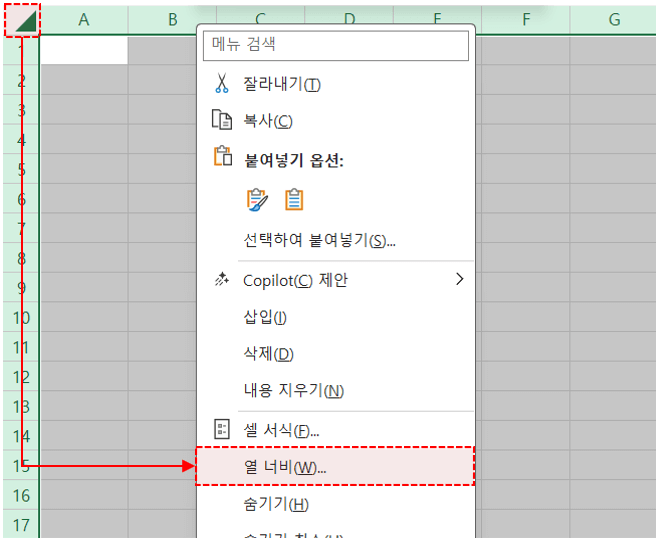 시트의 모든 셀을 선택한 후, 열 머리글을 우클릭 - 열 너비로 이동합니다.
- 열 너비 창이 나오면 값을 [1]로 변경합니다. 동일한 방법으로 행 높이는 [10]으로 변경합니다.
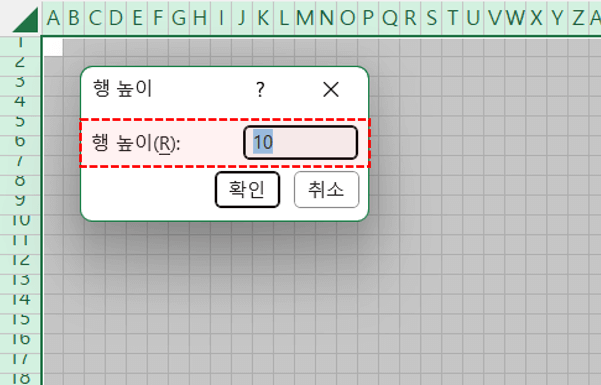 열 너비는 1, 행 높이는 10으로 변경합니다.
- 이제 키보드에서 Alt + F11 을 눌러 매크로 편집기를 실행한 후, [삽입] - [모듈]을 클릭해 새 모듈을 추가합니다.
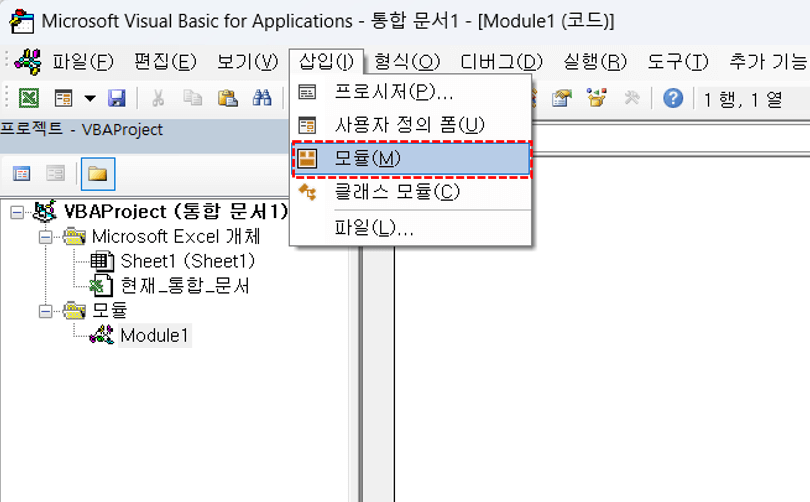 매크로 편집기를 실행한 후, [삽입] - [모듈]로 새 모듈을 추가합니다.
- 모듈 안에 코드를 붙여넣은 후, 매크로 편집기를 종료합니다.
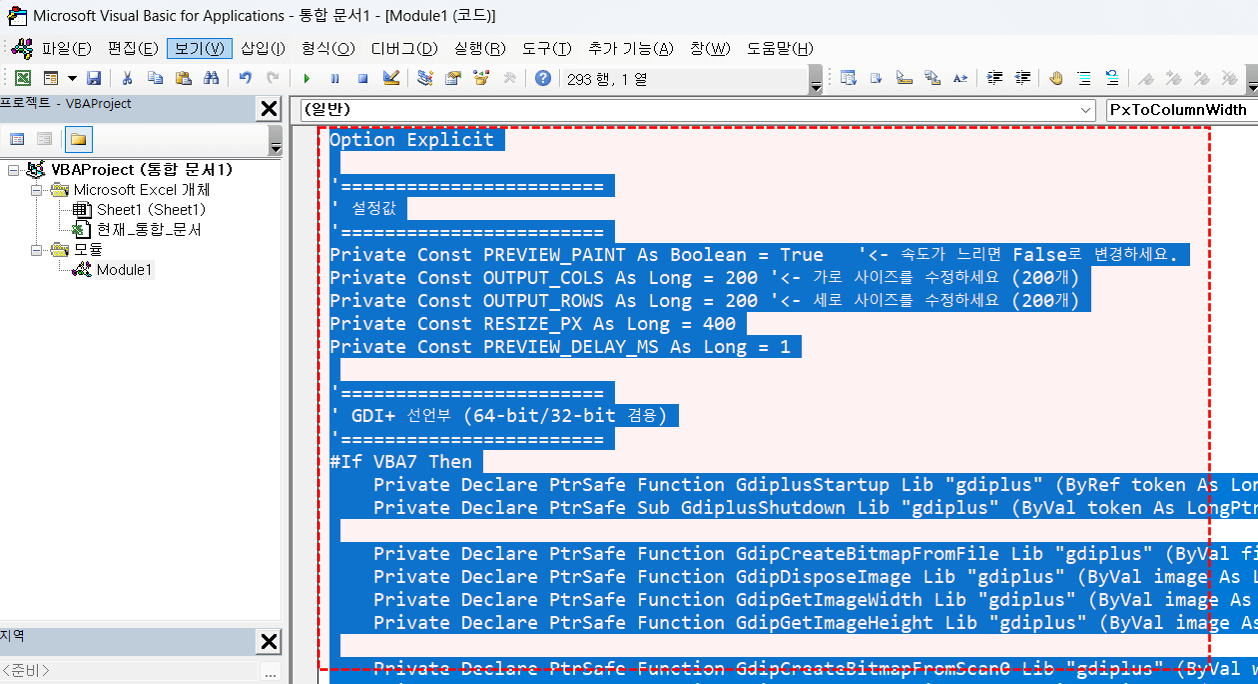 완성 코드를 모듈 안에 붙여넣습니다.
- 시트에서 Alt + F8 을 누르면 [매크로] 창이 실행됩니다. 목록에서 '그림을시트에넣기' 매크로를 선택하고 [실행] 버튼을 클릭합니다.
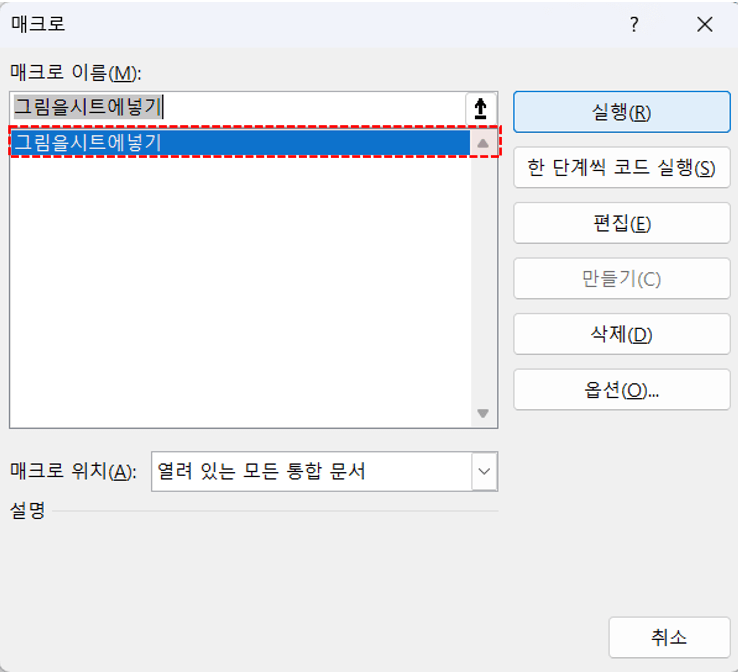 Alt + F8을 누른 후, 매크로 목록에서 '그림을시트에넣기'를 실행합니다.
- 그러면 선택한 사진이 엑셀 픽셀아트로 그려집니다.
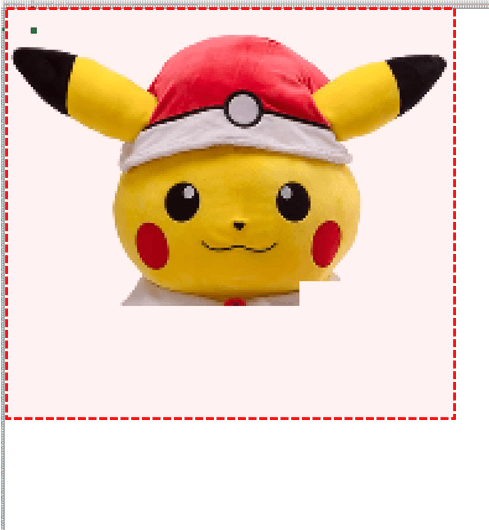 엑셀 픽셀아트가 완성됩니다.